
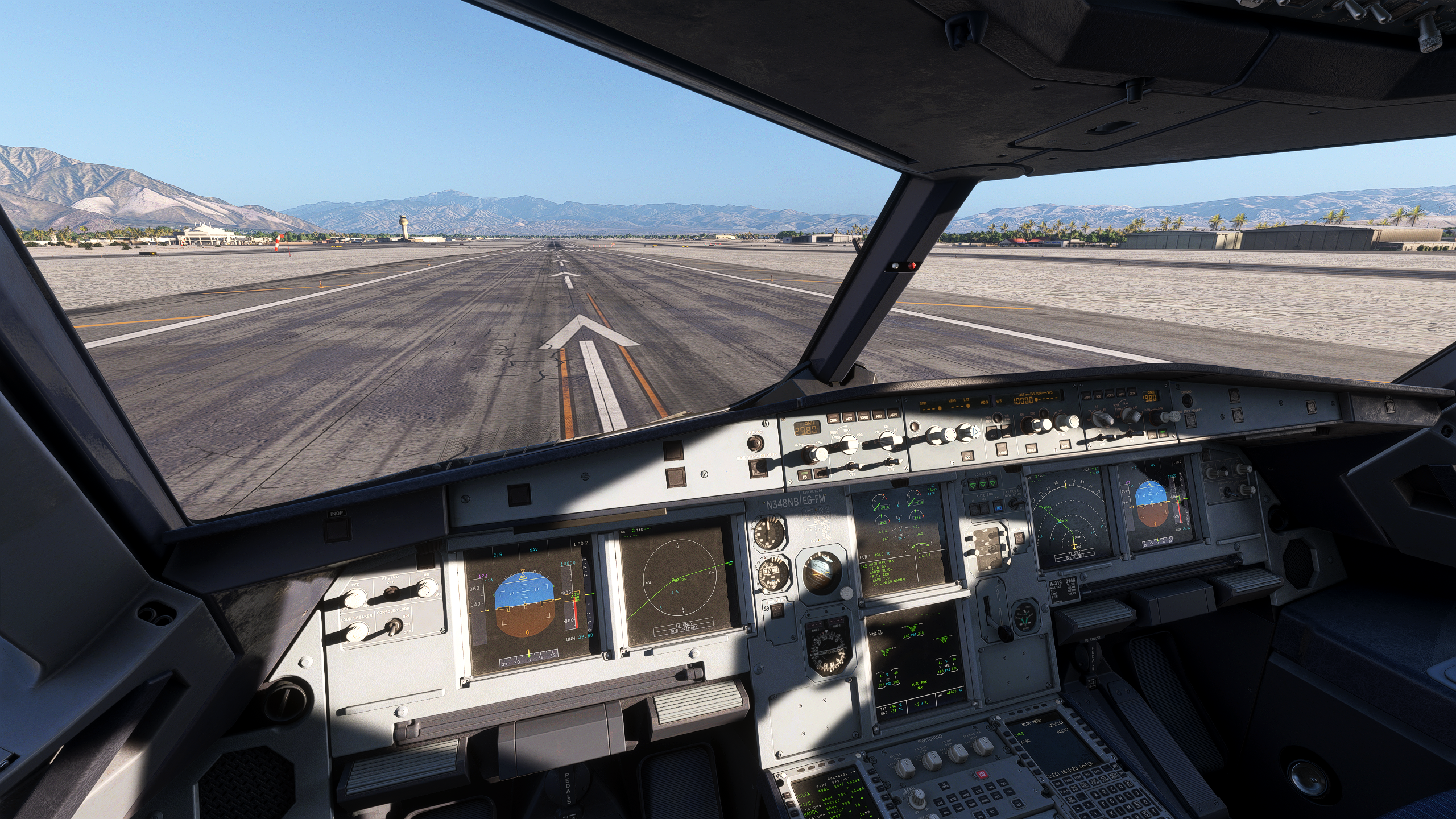
Starting in MSFS can be quite daunting; even as an experienced simmer, you can find it hard to discover those core, essential add-ons. In this post, I’ll share my recommendations for the top 5 essential add-ons for Microsoft Flight Simulator. There will be a mix of freeware and payware in this list. Hopefully, by the end, you can decide what to pick up for your simulator.
FSLTL is a freeware add-on available in the FlyByWire Launcher, which pulls real traffic data from Navigraph and Flightradar24 to populate your simulator with moving traffic in your skies. FSLTL includes many types of aircraft from Airbus to Embraer, giving you a lot of variety and the best chance of matching the correct type of aircraft to the live traffic. For any VATSIM users, FSLTL includes a ready-made, up-to-date VMR file for the most accurate model matching in VATSIM.


Through the FlyByWire Launcher, installing FSLTL is made very easy. It is essentially a one-click install for both the base models and the traffic injector. The traffic injector is the program that puts the live traffic from Flightradar24 into the simulator in the correct locations, or as close as possible. However, you can just use the base model package with the standard in-game AI traffic or another injector. FSLTL does require around 56GB of space to install the base model package, though the result is fantastic.
Whether you’re looking for some ambience to fill the empty space during your flight, or using VATSIM, FSLTL is perfect for high-quality, freeware models of practically every aircraft you would need. I should also note that the FlyByWire Launcher is the same place you can download FBW’s freeware A320 for MSFS, another fantastic add-on.
Coming from Parallel42, ChasePlane turned the default questionable and confusing camera controls and capabilities into a system that makes every part of your experience better. The camera system in MSFS is known to be wacky at times; it also has many limitations, and there’s a lot of improvement being asked of it to this day. However, ChasePlane completely disables that default system, replacing it with their own. The result: an addon you can never turn away from.
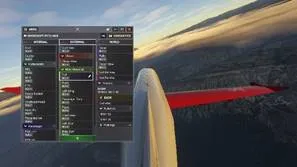

ChasePlane offers far better control over the camera inside the simulator, as well as allowing you to create as many custom save cameras as you desire. You are no longer limited by the simulator, and as long as you have the buttons for them, you could make 100 custom cameras. This, for me, was a must-have, as owning a Stream Deck means I can easily set up 20 different camera views if I wish by using a combination of Ctrl, Alt and Shift keys, as well as the extra hidden modifier keys in Windows.
It also offers a really nice cinematic view, switching between camera views while you cruise. Plane spotting is made far easier with controls to lock onto nearby traffic, or watch from the tower if you choose. ChasePlane can be bought from the P42 Store for £28.
I can not go through an essential list and not recommend the freeware FlyByWire A320 Neo. It was the first airliner I flew when starting in MSFS. There are plenty of options for the A320 in the simulator as of today, possibly too many. As for freeware, I would classify the FBW A320 as the best in terms of what it offers at the cost of nothing. Available on the FlyByWire launcher for both MSFS 2020 and 2024, the A320 Neo offers a fairly deep model of its systems, as well as a very nice exterior model and texture work.

The FBW A320 started off by modifying the original A320 that was released with MSFS 2020, and has since grown into almost its own aircraft. It’s seen a lot of updates and improvements over the years, resulting in a really nice, polished aircraft for those looking for something free and easy to fly. The A320 is always a good place to start in my opinion, as it’s a fairly easy aircraft to learn to fly, or to get a handle on the simulator.
FBW also offer a freeware A380 for the simulator, a more recent release from the team. The A380 is one I can also recommend for those looking for long-haul flights. It’s not perfect, though it’s still being updated and worked on. FBW is an open-source community project, meaning you can submit your own improvements via GitHub to help move the project forward.
Charts in flight simulation are essential for flying correct airport arrivals and being able to navigate in the skies easily. Navigraph offers up-to-date charts along with AIRAC updates. Both of these are something I would consider essential to flying, whether it’s VFR or IFR. AIRAC data integrates directly into the simulator via the Navigraph Hub, so all your aircraft and simulator data can all be synced up correctly. This is especially important when planning flights with SimBrief, as mismatched data will likely result in missing waypoints.

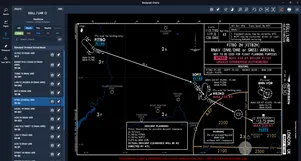
Alongside the charts and AIRAC data, Navigraph also have their own application giving you access to a vast suite of tools. Their app covers the entire world with moving maps, overlaying charts onto the map, weather overlays and more. An in-game panel also allows you to open and see the Navigraph app directly in the simulator, without the need for an extra application.
Navigraph runs on a subscription basis, while their flight planning software SimBrief is free. It comes in at almost £8 a month or £70 annually. For flying anywhere in the simulator, Navigraph is your best friend and a must-have.
This is not one that directly affects you within the simulator, but rather how you manage your library of add-ons. As time goes on, you will start collecting a lot of addons, from aircraft to scenery. Eventually, you end up with hundreds, and that can become very hard to keep track of. Some find just moving addons back and forth between folders is easier; however, Addon Linker will save you a lot of time in the long run.
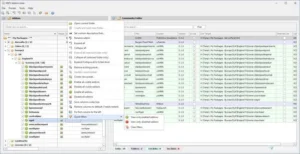
Addon Linker is fairly easy to set up, creating a clean folder structure where you can store all your addons. The software will create symbolic links for each one so that with a press of a button you can move them in and out of your community folder. Before each flight, open up Addon Linker and turn anything you need on, or remove anything you don’t need from a previous session with ease.
Loading times make this software particularly helpful, as it can speed up those loading times. This issue is more prevalent with MSFS 2020 due to the lack of streamed content than with MSFS 2024. However, you will find that if you have 50 add-ons in your community folder, the simulator takes considerably longer to load into the menu. Dumb this down to just the 5 or 6 you need for your flight, and your loading times improve a lot. Addon Linker is available on Flightsim.to.
That’s my top 5 essential add-ons for Microsoft Flight Simulator 2020 and 2024, giving you a mix of both freeware and payware add-ons. There is, of course, a lot more that I could have recommended, but I would be here a while. Over time, you will find what works best for you and what doesn’t. Not all add-ons here are a must-have; find what works for you.